Chapter 8 — Export
DigitalClay3D produces print-ready meshes in two formats: STL (binary, the de-facto standard for 3D printing) and OBJ (ASCII, useful for further editing in Blender / Rhino). Both formats are generated from the same internal mesh — the choice is just file format.
The export menu
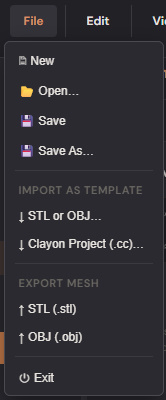
File → Export → shows two options:
- STL (.stl) — binary STL. ~50 bytes per triangle. Standard for every clay slicer.
- OBJ (.obj) — ASCII OBJ. Larger files (~30 % bigger) but human- readable, and Blender / Rhino prefer them for further mesh work.
The mesh is generated at the Quality setting in the toolbar — independent of viewport quality. Export quality stays high (smooth mesh) even when viewport is dialed down (e.g. during pottery wheel sessions). Set it once via the Quality dropdown, or set the default in Settings → Defaults → Default Export Quality.
| Quality | Approx triangles (vase) | When to use |
|---|---|---|
| Low | ~10k | Quick test prints / size sanity checks |
| Medium | ~30k | Preview prints, small vases |
| High | ~100k | (default) most prints — smooth + reasonable file size |
| VeryHigh | ~400k | Tall vases or fine textures |
| Ultra | ~1M+ | Cut-through tessellations, fine surface detail; expect a 5–10 sec bake |
The export progress modal
Mesh-heavy exports (Voronoi cut-through, tall meshes at Ultra) can take several seconds. The progress modal shows what stage you're in:
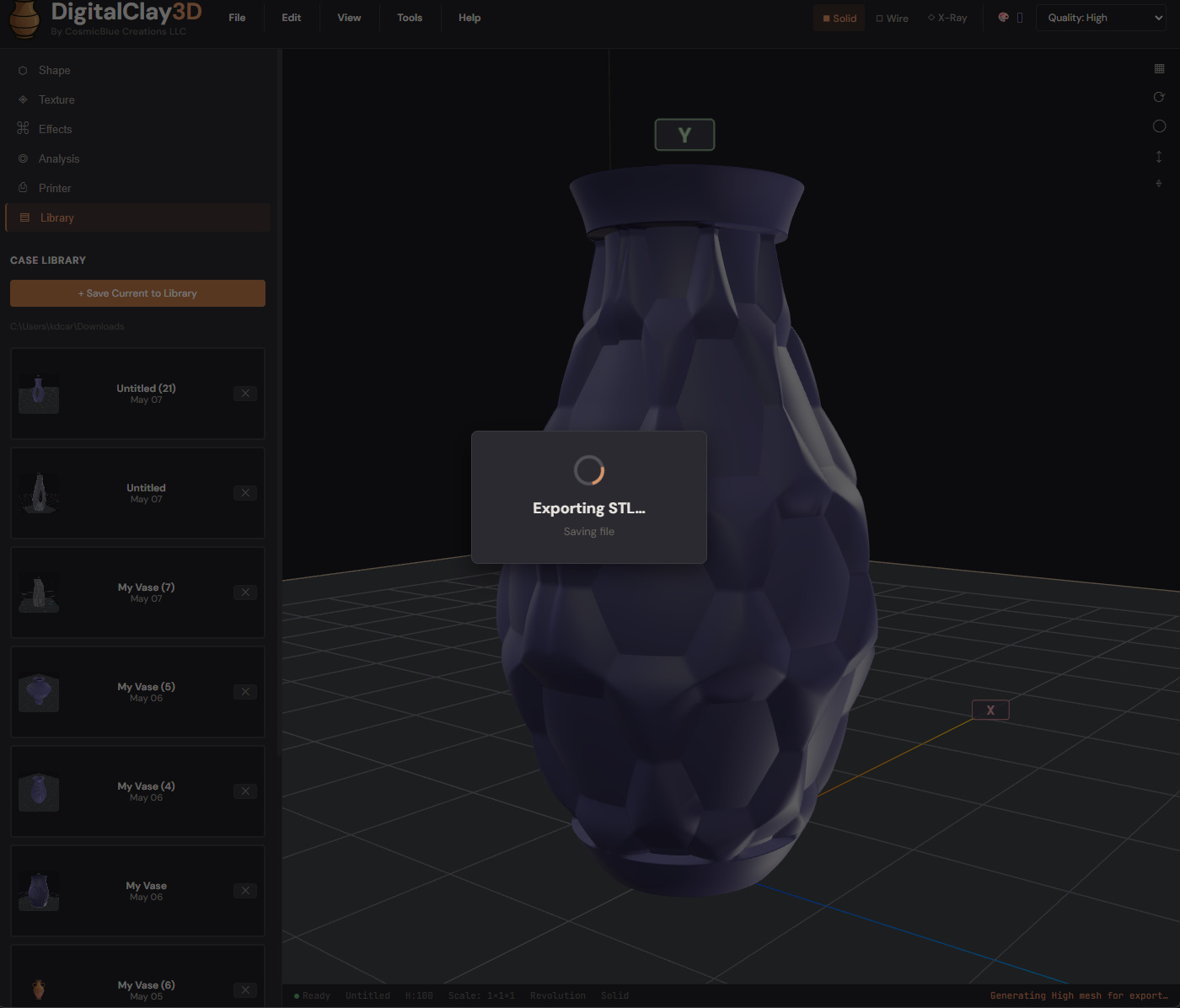
Three stages:
- Building mesh — regenerating the parametric mesh at export quality, applying texture and surface effects.
- Writing N triangles to STL — serializing the mesh to binary STL format.
- Saving file — handing the bytes off to the OS save dialog (or browser download).
The triangle count appears so you know what's coming through. Cancel the modal at any time by closing the picker.
Where the file goes
The save flow tries up to three paths in priority order:
- Native MAUI Save dialog (Windows / macOS desktop) — the proper OS
save dialog with full folder navigation, via CommunityToolkit's
FileSaver. Crash-resilient because it goes through the WebView2 / WKWebView's bundled save dialog, not COM directly. - Browser File System Access API (Linux / web demo / WebView2) —
showSaveFilePicker. Works in modern Chromium-based browsers and most desktop WebView hosts. - Anchor download fallback — file lands in your default Downloads folder under the suggested name. Always works; no folder prompt.
You'll see a status-bar message on success: Saved MyVase.stl — 142,016 triangles (High).
On mobile (iOS / Android) the file goes through the OS Share sheet so you can route it to Files / Drive / email / direct AirDrop.
Coordinate system & orientation
Internally DigitalClay3D works in Y-up (model grows along +Y).
Slicers conventionally expect Z-up (model standing on its base in
+Z). The exporter automatically rotates +90° about +X — the bake maps
(x, y, z) → (x, -z, y) — so the part imports already-upright into
Cura / PrusaSlicer / Bambu Studio. No need to re-orient in the
slicer.
Every triangle is wound counter-clockwise when viewed from outside, so the slicer's outside-vs-inside detection is unambiguous. Walls have proper inner-vs-outer normals (analytical for revolution; computed for loft / SDF / template paths).
What's NOT in the exported mesh
A few things you see in the viewport are intentionally excluded from the export:
- Build plate — it's a viewport aid, not part of the model.
- Bounding cage / Anatomy rings — measurement overlays, not geometry.
- Profile control points (when the 3D-overlay editor is on) — edit handles only.
- Templates — the translucent blue reference mesh from STL/OBJ import (Chapter 7) is only a viewport aid; only the parametric model exports.
- Pattern Graph Editor canvas — exists in another DOM layer.
What IS exported: just the textured / effected parametric (or SDF multi-object loft) mesh, including the inner cavity, bottom cap, and rim — a complete watertight printable solid.
STL vs OBJ — which to pick
Pick STL unless you specifically need OBJ. Reasons:
- Every clay slicer accepts STL natively.
- Binary STL is smaller than ASCII OBJ (~50 bytes/triangle vs ~70 bytes/triangle).
- STL has no risk of stray vertex / texture / normal lines confusing a slicer.
Pick OBJ when:
- You want to import the mesh into Blender / Rhino / 3D-Coat for further sculpting.
- You're inspecting / debugging vertex positions and the ASCII format matters.
- A specific tool you use only accepts OBJ.
Tips
- Test with Low quality first — if your design has a topology problem (non-watertight, self-intersecting), it shows up faster at Low than at Ultra.
- Print orientation — DigitalClay3D's exports stand upright. If your slicer's auto-rotate is on, it might flip the model. Disable auto-rotate or check the orientation before slicing.
- File naming — the suggested filename comes from
model.Name(the same string used in the title bar). Save your project (or save to library) first to set the name, then export. - Repeat exports — the second export of the same project remembers the last filename you picked, so you can iterate quickly without re- typing.
What to read next
- Chapter 9 — Settings to set your default export quality, default surface color, and printer.
- Chapter 10 — Tips & Troubleshooting for performance and quality troubleshooting.