Chapter 2 — Modeling Modes
DigitalClay3D supports four ways to build a silhouette. Pick the one that matches what you're trying to make; you can switch modes at any time but each mode owns its own state, so don't expect a polygon profile to follow you into Revolution mode.
| Mode | When to pick it |
|---|---|
| Revolution | Classic vase / bottle / bowl — anything axisymmetric. The fastest path. |
| Lofting (Single) | Cross-sections that change shape as they go up — tapered ovals, twisted square-to-round transitions. |
| Lofting (Multi-Object) | Branching forms — three legs merging into a single trunk, octopus-style multi-foot bases. Experimental. |
| Intelligent | You have a reference photo of a vase and want a parametric model that matches its silhouette. |
You set the mode in the Shape tab via the Mode dropdown at the top.
Revolution mode
The default. The model is built by spinning a 2D profile around the Y axis. Edit the profile, the 3D shape follows immediately.
The Shape tab in Revolution mode breaks into two stacked sections — the Object Settings panel at the top (model name, mode dropdown, height & diameter, scale operations, profile shape) and the Revolution Profile + Wall/Floor + Base panels below it:
| Panel | Screenshot |
|---|---|
| Object Settings | 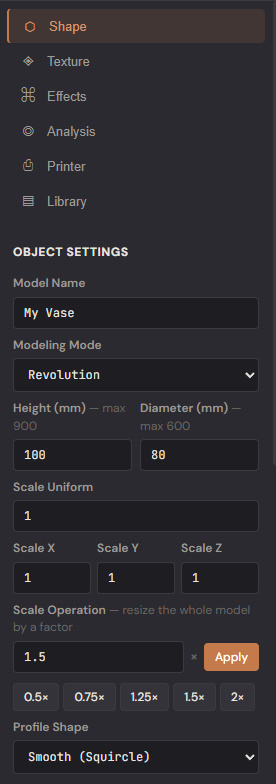 |
| Profile + Wall/Floor + Base | 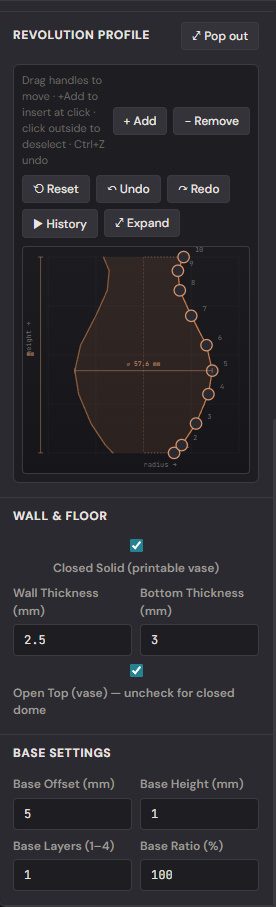 |
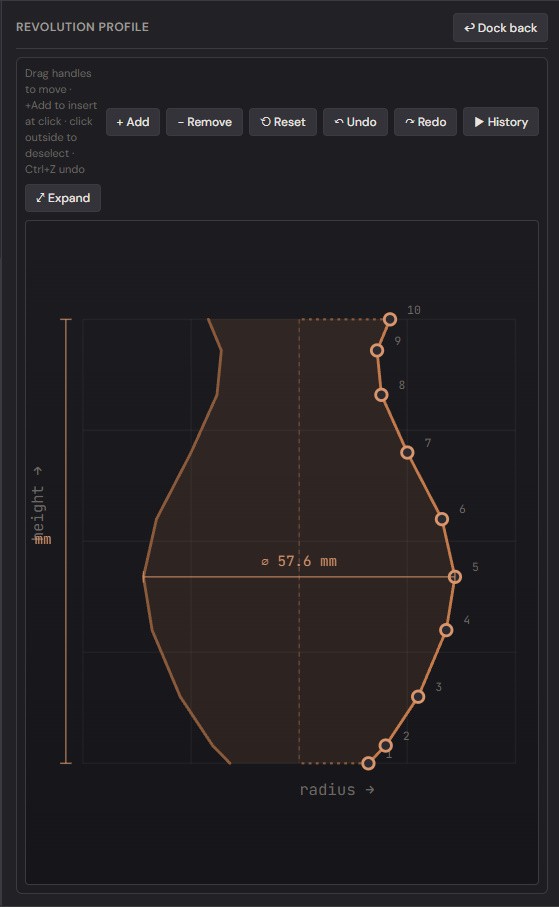
The profile editor is the panel on the left. Each dot is a control
point with X (radius fraction, 0..1) and Y (height fraction, 0..1).
Drag a dot to reshape; click an empty area on the curve to add one.
Right-click to delete.
Pop the editor out to a wider canvas next to the 3D view via the
⤢ Pop out button — useful when fine-tuning the curve while watching the
result.
Profile control points in 3D — when Show Profile Points is on in the Dimensions overlay, the same control points render as draggable spheres on the 3D model itself, with their Y/X coords as tooltips. Lets you sculpt the profile directly on the 3D view.
Cross-section profile
By default the cross-section is a smooth circle. Switch the Profile Shape to Polygon to give the body a faceted feel (3-side triangle, 6-side hex, 12-side dodecagon, etc.). The Chamfer Radius rounds polygon edges so they don't print as hard lines.
Lofting — Single-Object
Lofting interpolates between user-drawn cross-sections at different heights. Useful when you need the silhouette to vary in shape — not just diameter — as it rises.
The Shape tab in Lofting mode shows three stacked panels — the layer list, the active layer's cross-section editor, and the Lofting Options group below it:
| Panel | Screenshot |
|---|---|
| Layer list + add/remove | 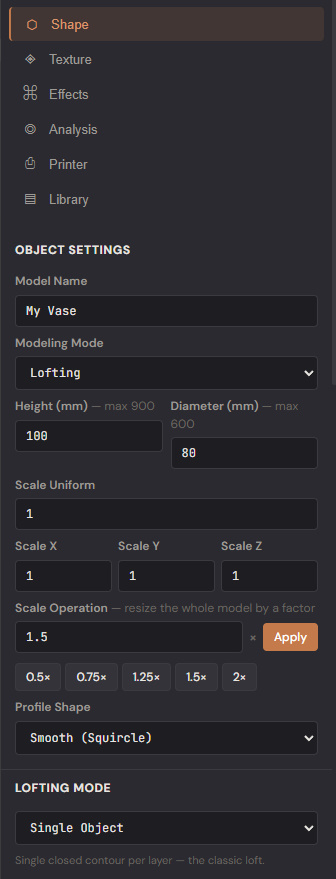 |
| Active layer's cross-section editor | 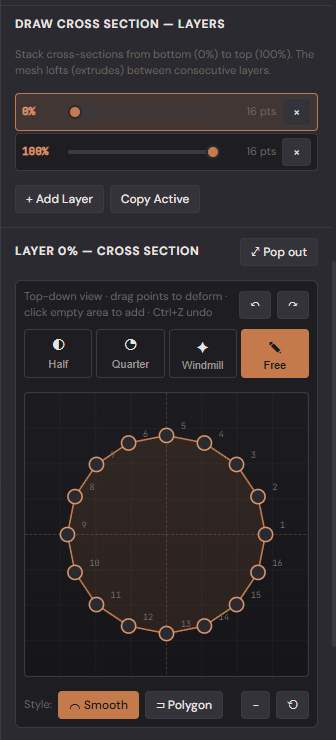 |
| Lofting Options (rotate / random) | 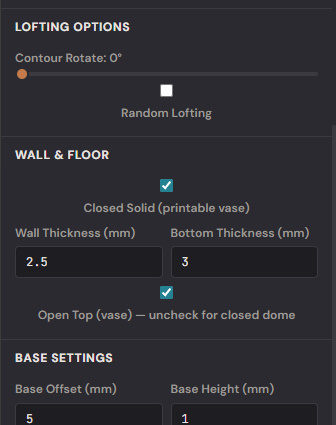 |
The Layers panel lists every cross-section by height percentage.
- + Add Layer seeds a new layer at the current active height.
- Copy Active duplicates the selected layer so you can tweak from a known starting point.
- The slider on each row sets the layer's height (0% = base, 100% = top).
- The
×removes a layer.
The Cross-Section Editor below shows the active layer's polygon. Pick a symmetry mode at the top:
| Mode | Behaviour |
|---|---|
| Half | You draw the right half; the left mirrors automatically. |
| Quarter | You draw one quadrant; the other three mirror. |
| Windmill | Four-fold rotational symmetry — a single quadrant rotates 4× around the centre. |
| Free | No mirroring — every point is drawn explicitly. |
Style is Smooth (Catmull-Rom curve through points) or Polygon (straight segments). Pop the editor out for a bigger canvas.
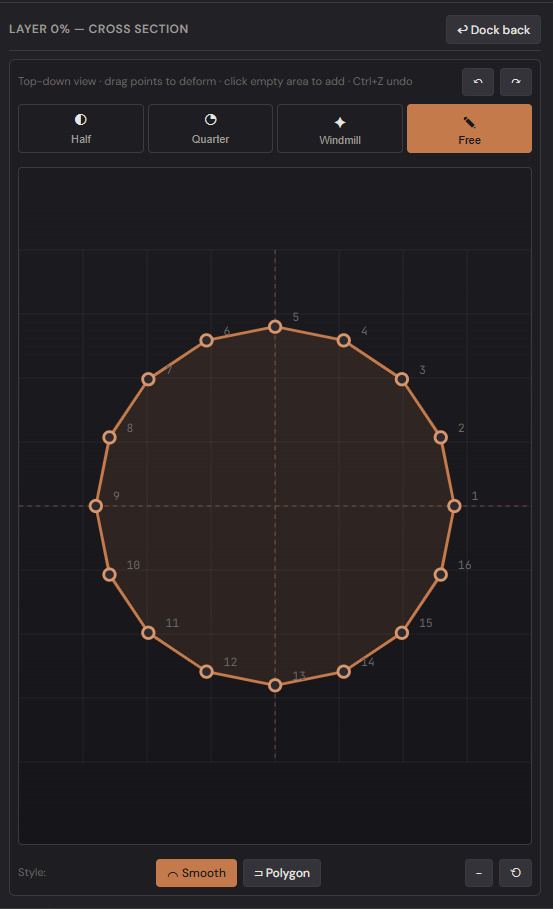
The mesh lofts (extrudes + interpolates) between consecutive layers. The Lofting Options panel below the layer list adds a per-height Contour Rotate (twists each layer relative to the one below) and a Random Lofting toggle that perturbs vertex placement so adjacent layers don't align in distracting straight lines.
Lofting — Multi-Object (experimental)
A different lofting engine that lets you place up to 8 round or square primitives per layer. Adjacent layers' primitives merge automatically: three circles at the base smoothly become one circle at the neck — the classic octopus-base / branched-vase problem solved with a single watertight mesh.
Enabling it: Settings → Experimental → tick Multi-Object Lofting. The Lofting Mode dropdown will then appear at the top of the Shape tab's Lofting panel, alongside the Single-Object option.
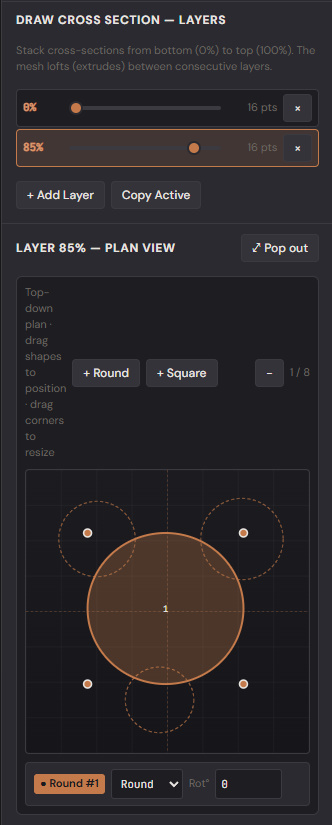
The plan-view editor is a top-down 2D canvas:
- Click + Round or + Square to drop a primitive at the canvas centre. You can place up to 8 per layer.
- Drag the body of any primitive to reposition it.
- Click a primitive to select it; corner handles appear.
- Drag a corner to resize; the cursor follows even when the primitive is rotated.
- Numeric inputs below let you fine-tune Center X / Z, Width, Height, Rotation°.
- The previous and next layers' primitives render as faint dashed outlines so you can stack shapes vertically.
The mesh is generated using SDF + Marching Tetrahedra: each primitive's signed distance field is rasterized to a 2D grid, layers are linearly blended along Y, and the 3D iso-surface is extracted. The result is watertight and topology-changing, so 3-tubes-into-1-trunk is seamless.
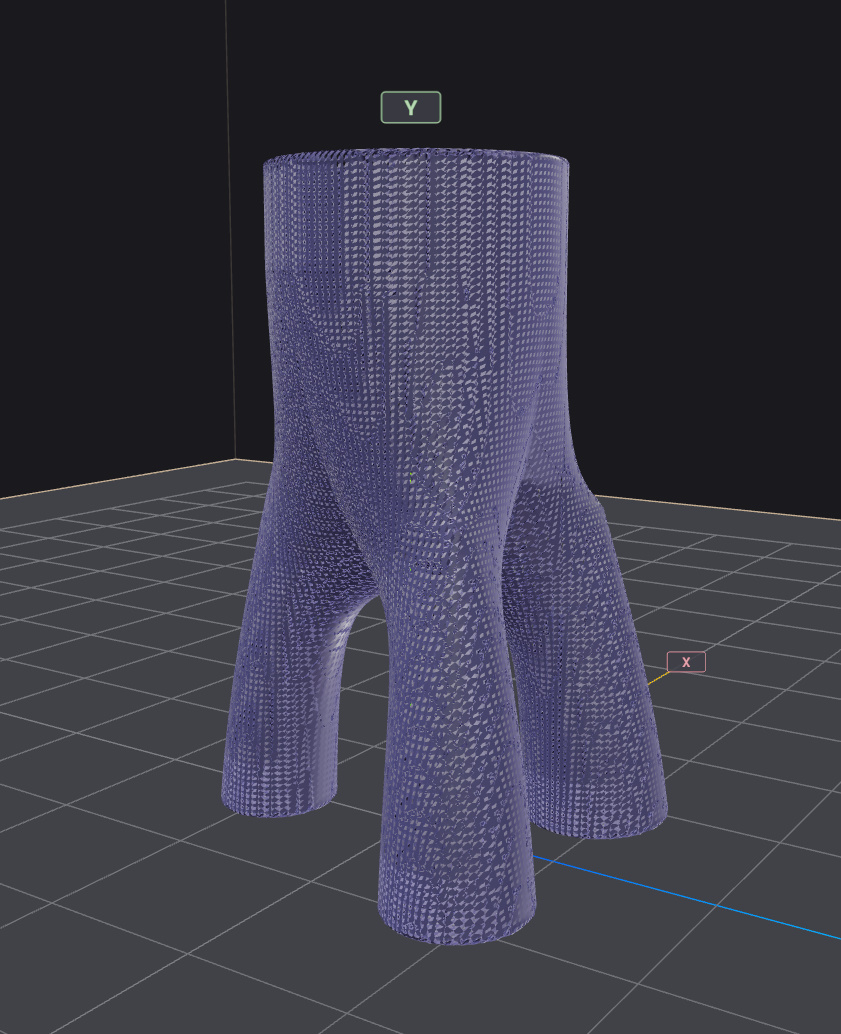
Surface Smoothness slider — under the Lofting Mode dropdown. At 0 the SDF lerps linearly between layers (visible creases at every layer boundary). Crank it to 0.5–0.7 for a smooth body; 1.0 polishes everything to a near-perfect surface but loses some sharpness on tight curvature.
Textures and surface effects don't apply in Multi-Object mode — the SDF mesh has no axisymmetric vertex layout for those passes to target. The Texture and Effects tabs show a notice when you're in this mode.
Intelligent mode
You drop in a reference image (a photograph or sketch of a vase). The silhouette is auto-traced — the foreground/background separation uses alpha for transparent PNGs and a corner-colour distance threshold for opaque images. The result becomes a Revolution profile you can then edit.
| Stage | Screenshot |
|---|---|
| Image picker + sample-count slider | 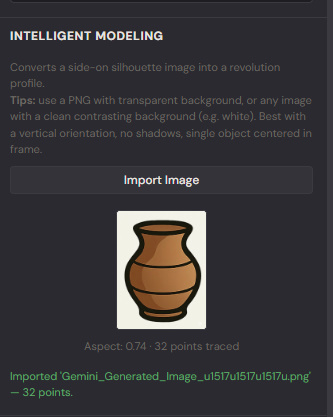 |
| Traced profile + 3D result | 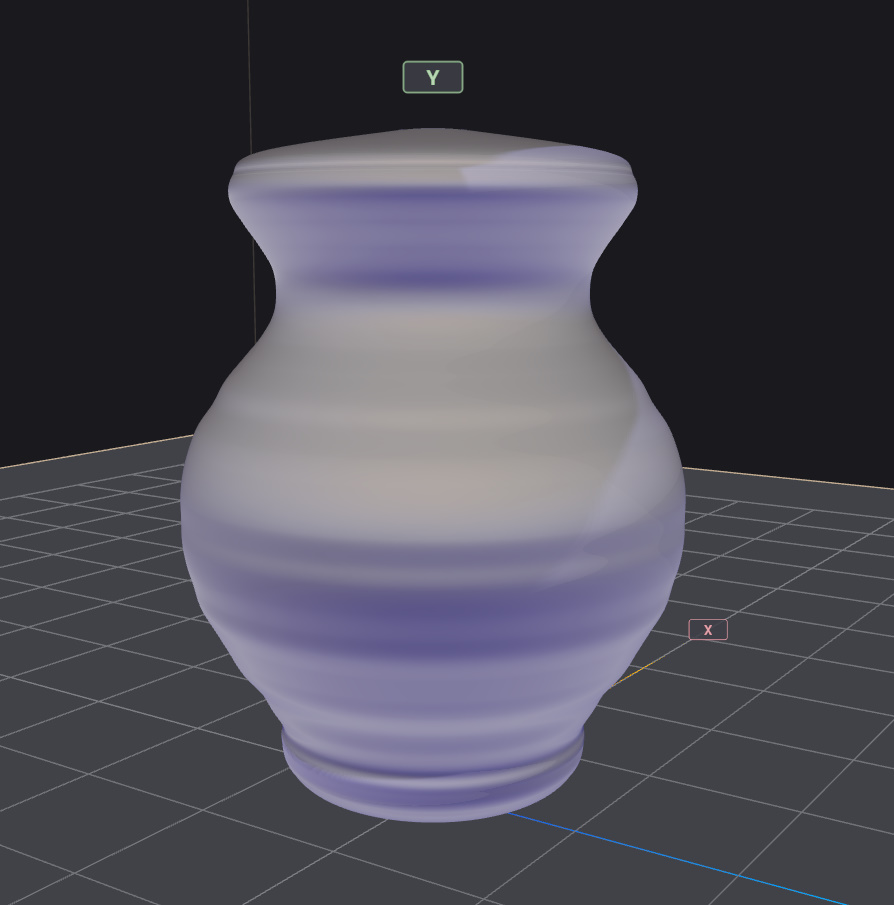 |
Workflow:
- Switch to Intelligent mode.
- Click Pick Image and select a PNG / JPEG.
- The thumbnail appears in the panel with the trace status (number of points sampled, silhouette aspect ratio).
- The model updates to match the traced silhouette. Aspect ratio is honoured automatically — a tall narrow image produces a tall narrow vase.
- Optionally tweak the Sample Count to change profile resolution (more samples = more curve fidelity).
- Switch back to Revolution mode to fine-tune the profile manually.
Unsupported inputs surface a friendly message: "Couldn't find a silhouette — is the background plain enough?"
What to read next
- Chapter 3 — Shape Tools for the pottery wheel, dimensions overlay, and build-plate management that apply to every modelling mode.
- Chapter 4 — Surface Decoration for textures and the Pattern Graph Editor.