
Chapter 6 — Library
The Library is your local collection of saved projects. Each entry is a
real .t3d file on disk paired with a .png thumbnail, so backups are
trivial (zip the folder), portability across machines is just-copy, and
the entries can be inspected by any other tool that reads JSON.
Where the library lives on disk
The default folder is ~/Documents/DigitalClay Projects/ (Windows
Documents, macOS ~/Documents, iOS the app's Documents container,
Android the app's external Documents). You can change it in
Settings → Library Folder — pick Browse… to open a native folder
picker, or paste a path directly.
The reset button (⟳) next to the path field returns the location to the default if you ever need to.
The Library tab
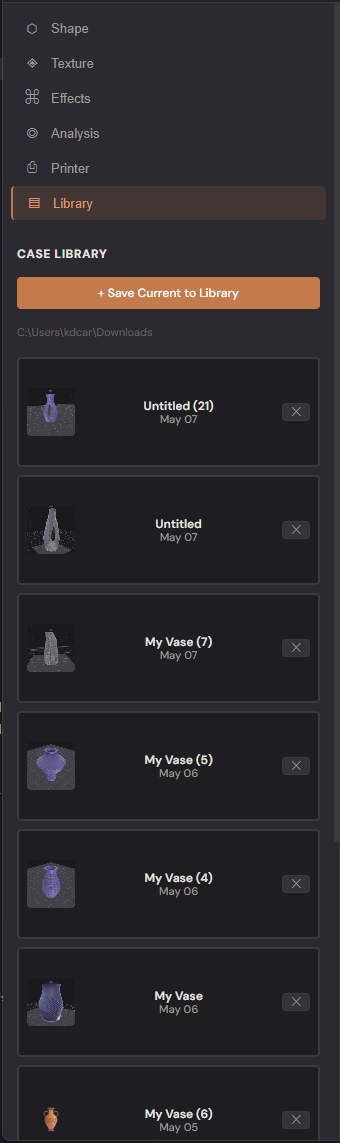
Each card shows:
- A 48×48 thumbnail captured from the 3D viewport at the moment of save. (If the thumbnail is missing the card falls back to the 🏺 glyph.)
- The project name (the filename stem on disk).
- The category (Revolution / Lofting / Intelligent) and the date the file was last modified.
- An ✕ button to remove the entry.
A small ★ marker appears next to the name of whichever entry your current model was loaded from — a hint that your next "Save to Library" will offer to overwrite that one.
The folder path displays as a small caption above the list so you always know where the files actually live.
Saving the current design
Click + Save Current to Library at the top of the panel. The behaviour depends on whether your current model is linked to a library entry (loaded from one) or fresh:
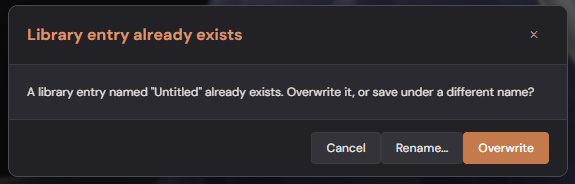
If the model came from a library entry, the tri-state dialog asks:
- Overwrite — replace the existing entry on disk (filename stays the same).
- Save as new… — pop a name-input prompt seeded with a unique
candidate (auto-suffixed
(2),(3), etc. to avoid collisions). - Cancel — bail.
If the model is unlinked but its name conflicts with an existing entry, the same dialog asks: Overwrite / Rename… / Cancel.
If there's no conflict — the save runs immediately under the current model name.
In all cases, the thumbnail is captured from the live viewport (256 px on the longest edge), so the saved entry visually matches what you were just looking at.
Loading from the Library
Click any card to load the project. Because loading replaces the in-memory model, you'll get a confirmation prompt: "Open "name" from the library? This will replace your current design — save it first if you want to keep it." Click Open to load.
After loading, the ★ marker moves to that card so future saves know to target it.
If the loaded project uses experimental features (Multi-Object Lofting, Pottery Marks, etc.), those features are auto-enabled in your settings and a notice modal explains what was activated. You can manage experimental features afterward via Settings → Experimental.
Removing entries
Click the ✕ on any card. A confirmation dialog asks:
"Remove "name" from the library? This will delete the project file from disk and can't be undone."
On confirm, both the .t3d and its .png thumbnail are deleted from
the library folder. If you removed the entry your current model was
linked to, the link is cleared automatically — your in-memory work is
unaffected.
Library vs File menu — when to use which
| Workflow | Use |
|---|---|
| Quick "save this for later" with a thumbnail | Library |
| Cross-machine backup / send to a friend | File → Save As (export the .t3d to a known location) |
Loading someone else's .t3d |
File → Open (severs any library link cleanly) |
| Re-iterating on a saved project | Library → click card then Save → Overwrite |
The two flows are independent — File-menu saves go through the OS Save dialog and don't touch the library, library saves go straight to the library folder without a picker.
Tips
- Organise by renaming — your library folder is just a regular
folder. Rename
.t3dfiles in Explorer/Finder, keep their.pngpartner with the same stem, and the renames show up next time you open the Library tab. - Sub-folders (planned) — v2.x will add breadcrumb navigation so you can group projects into "Vases / Spring 2026" folders. Today the library is flat.
- Cloud sync — point the library folder at a Dropbox / iCloud / OneDrive folder to sync your entire collection across machines.
- Manual thumbnail edit — replace the
.pngnext to a.t3dwith any 256×256 image. The library will display whatever's there next time you reload the tab.
What to read next
- Chapter 7 — Importing for opening Clayon
.ccfiles and using STL/OBJ as templates. - Chapter 8 — Export for sending finished projects to the printer.